
Printer Connection Guide
Seeing printer offline or driver missing?
This visual guide shows the same type of printer issues users usually see on their computer: offline printer, unknown device, missing driver, stuck queue, USB issue, or WiFi connection problem.
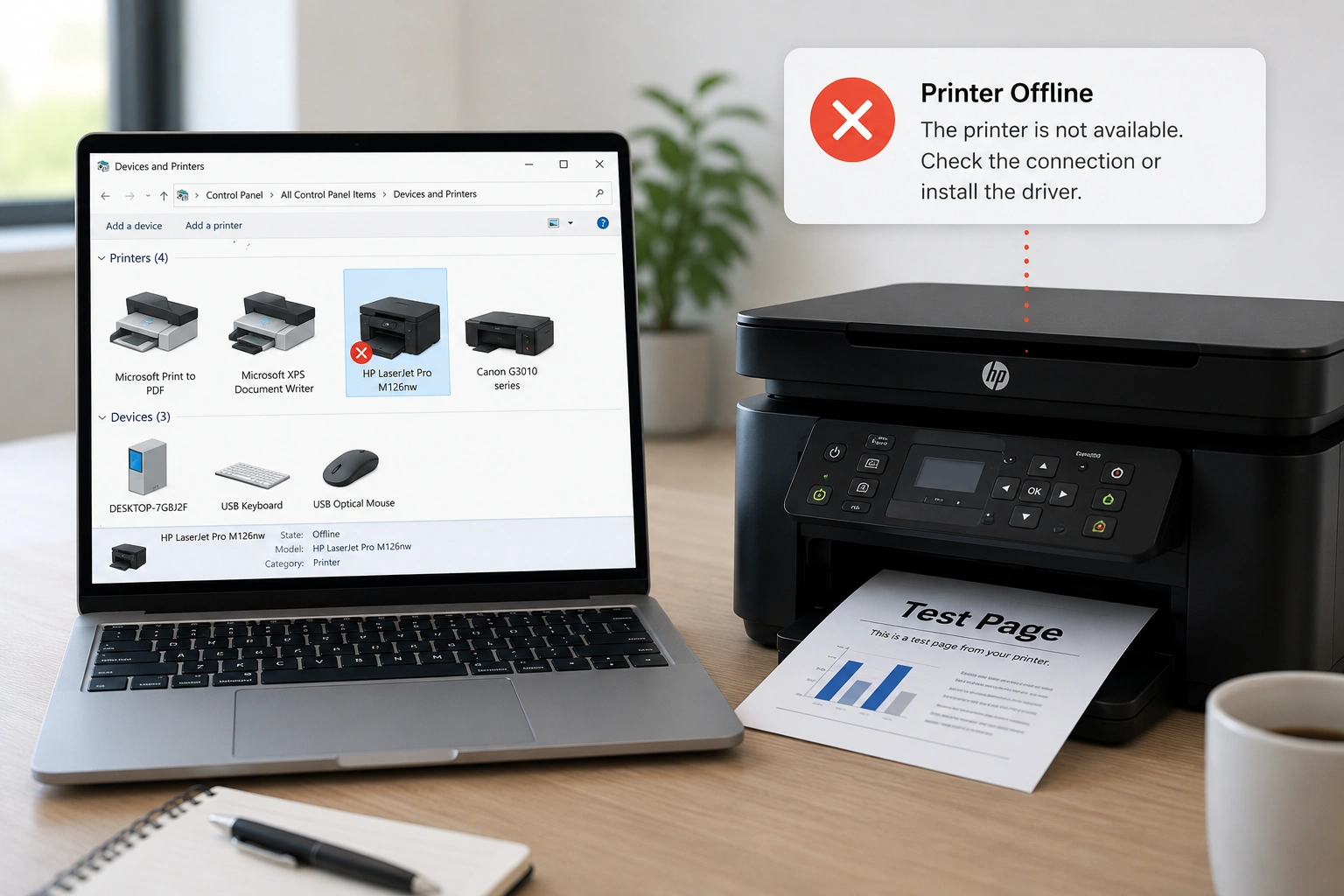
Real user issue view
Printer Offline / Driver Missing
What users usually see
Match your screen with these printer issues
These cards show common Windows-style printer situations so users can quickly understand what issue they are facing.
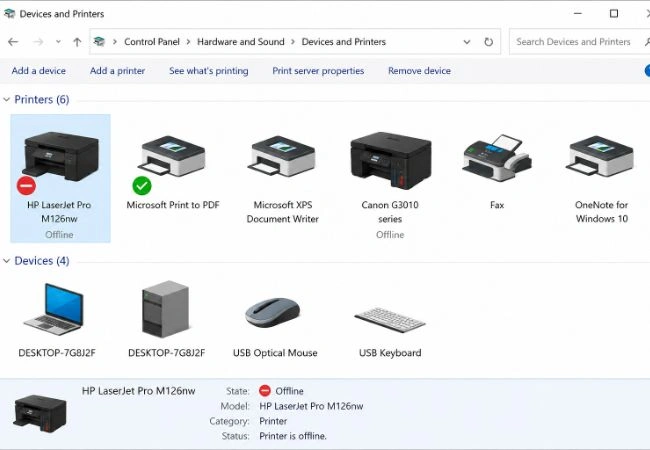
Printer Offline
Printer appears in Devices & Printers but status shows Offline.
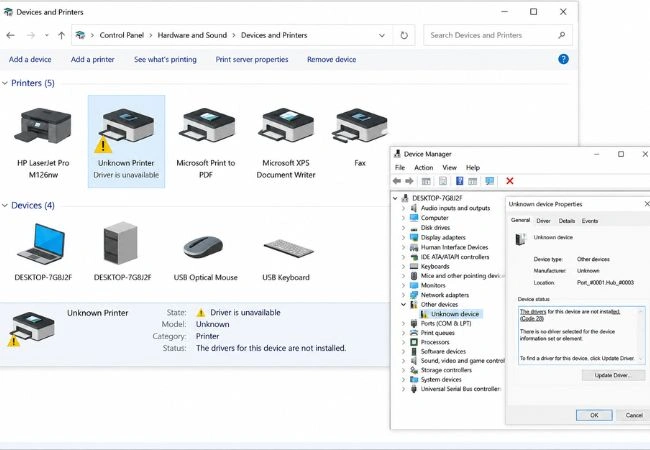
Driver Missing
Windows shows unknown device or printer driver is unavailable.
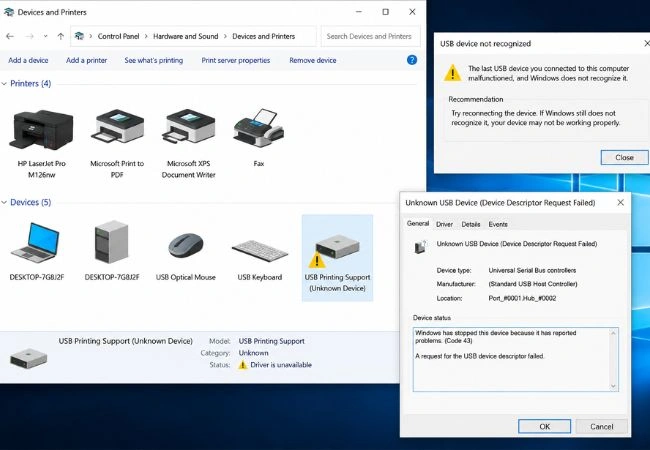
USB Not Recognized
Printer is plugged in, but the computer does not detect it properly.
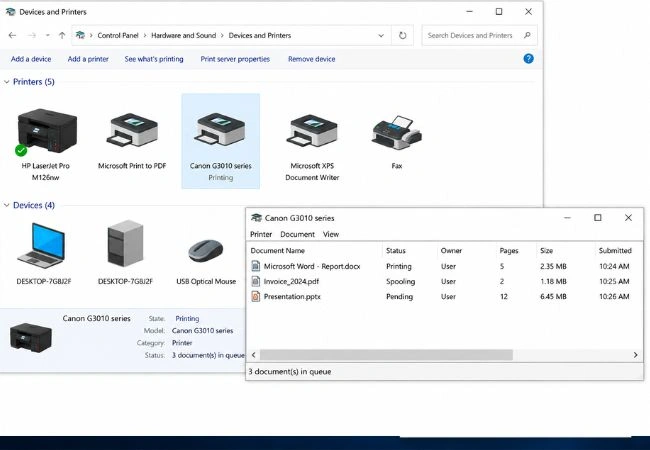
Print Queue Stuck
Old print jobs stay pending and block new print requests.
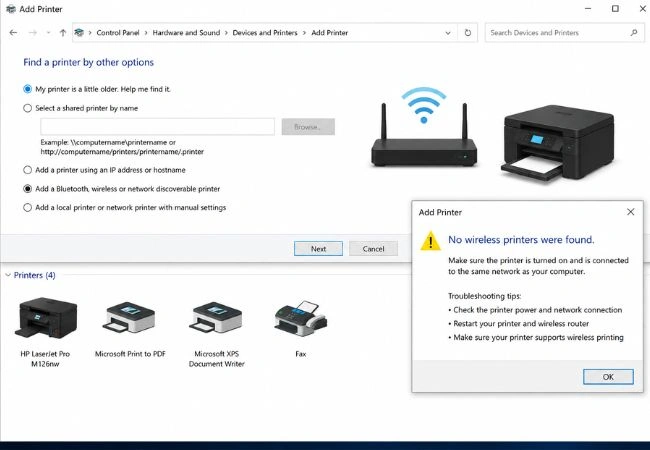
WiFi Printer Not Found
Wireless printer is on but does not appear during search.
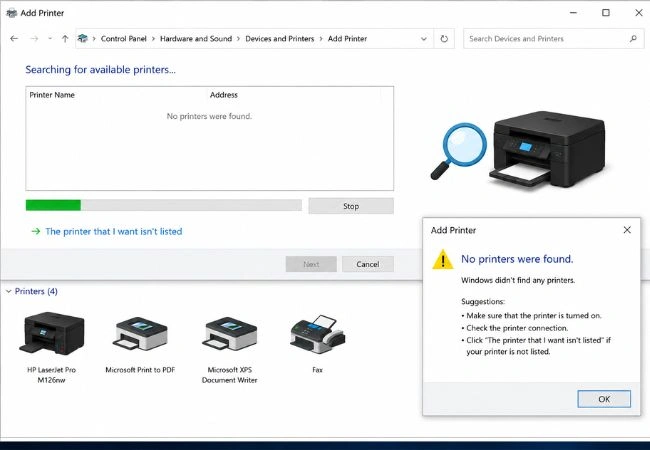
Add Printer Not Showing
Printer setup screen cannot find your printer model.
Control Panel Style Guide
Where users usually check printer status
Users normally open Windows printer settings or Control Panel to check whether the printer is visible, offline, unknown, or blocked by pending jobs.
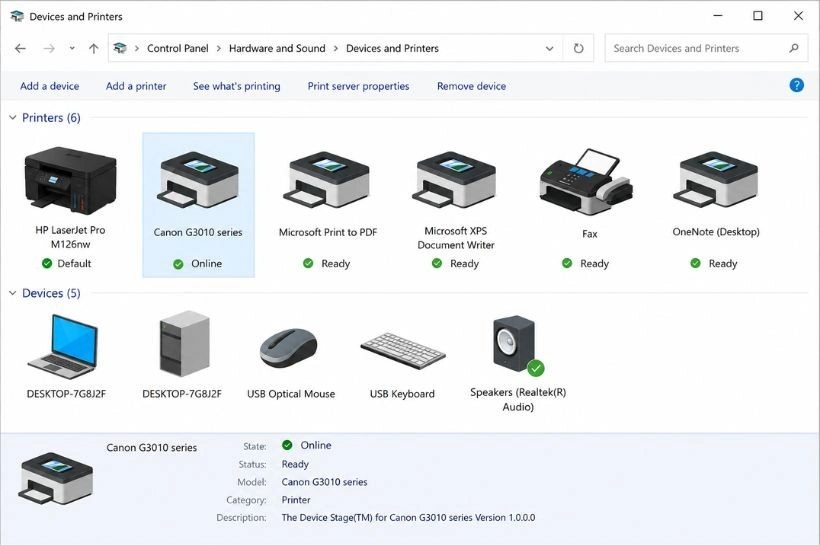
Devices & Printers
Shows connected printers and their status.
Print Queue
Shows stuck, pending, or failed print jobs.
Device Manager
Shows missing driver or unknown device warning.
Driver Installation Flow
How printer driver setup usually works
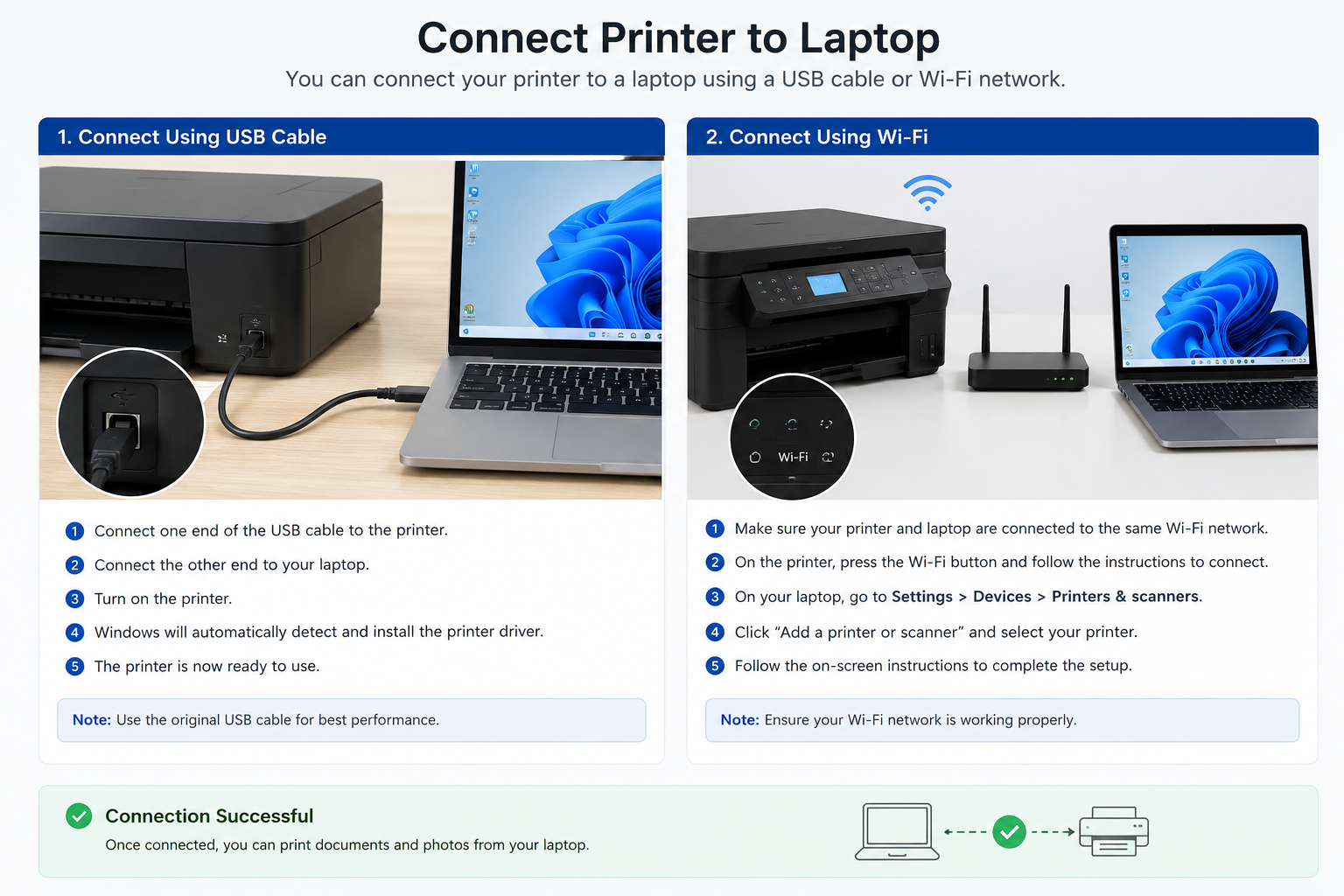
Connect Printer
Plug USB cable or connect printer to WiFi network.
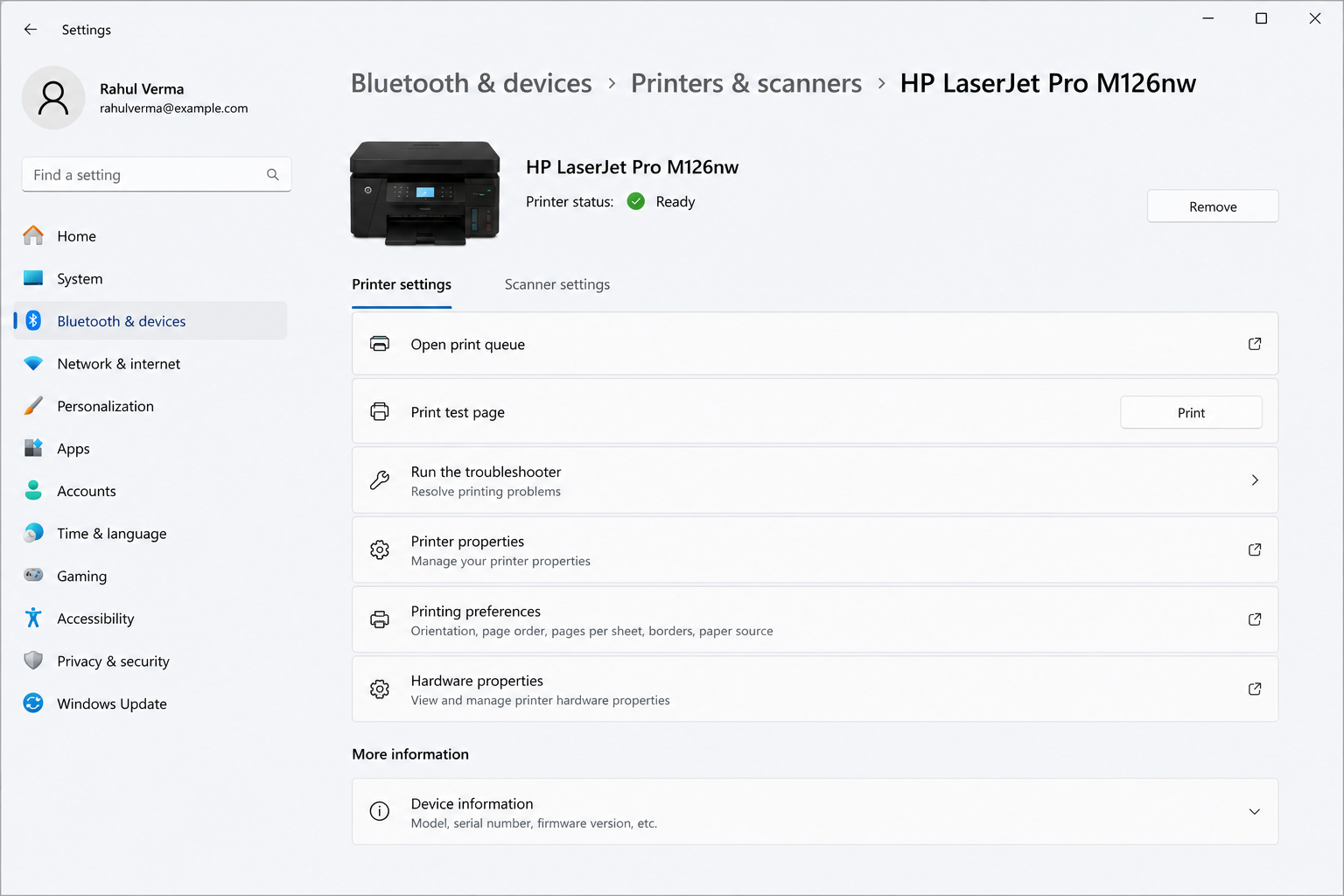
Open Printer Settings
Go to printer settings or Devices & Printers area.
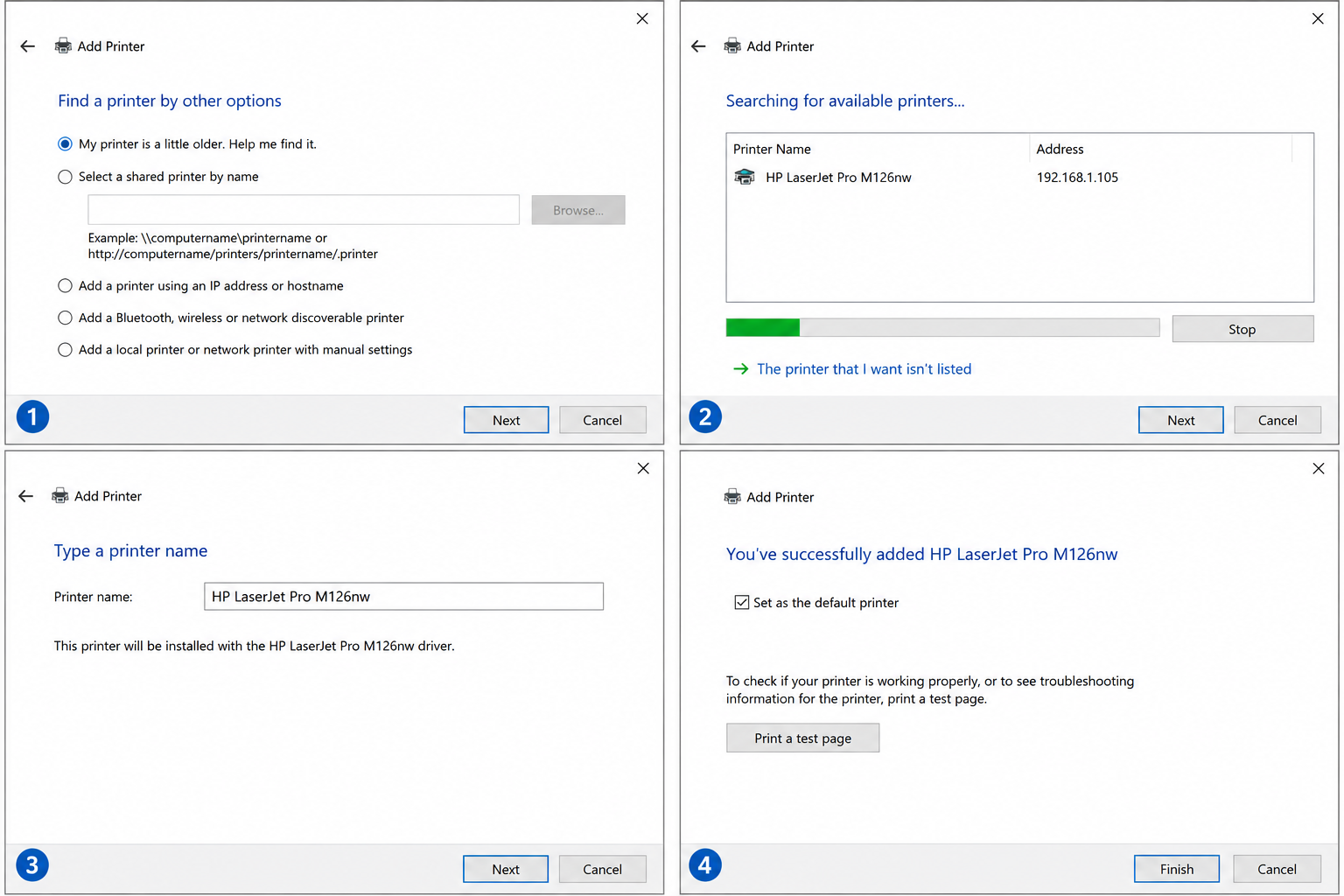
Add Printer
Choose Add Printer and let computer search for available printer.
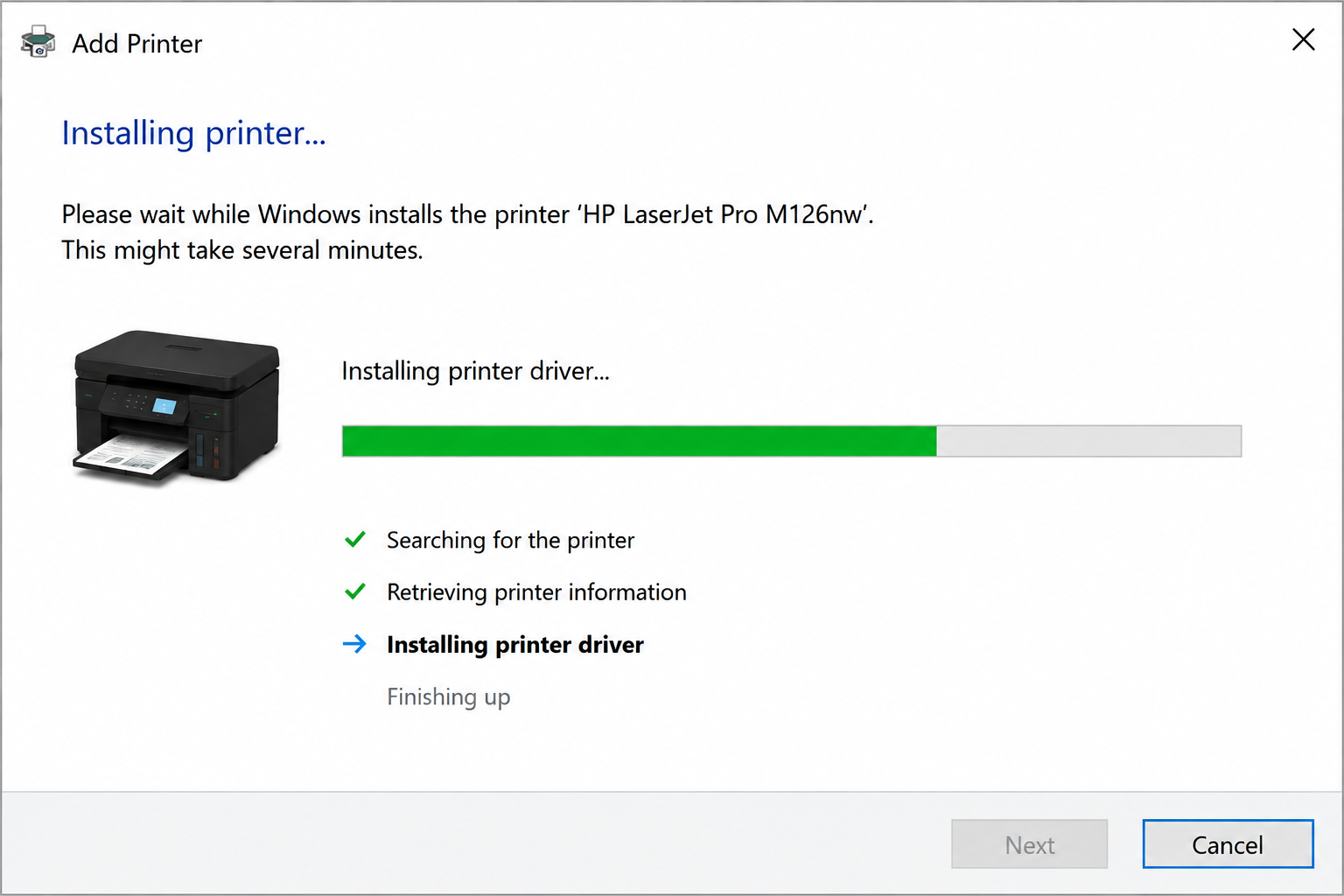
Install Driver
System uses a driver so printer and computer can communicate.
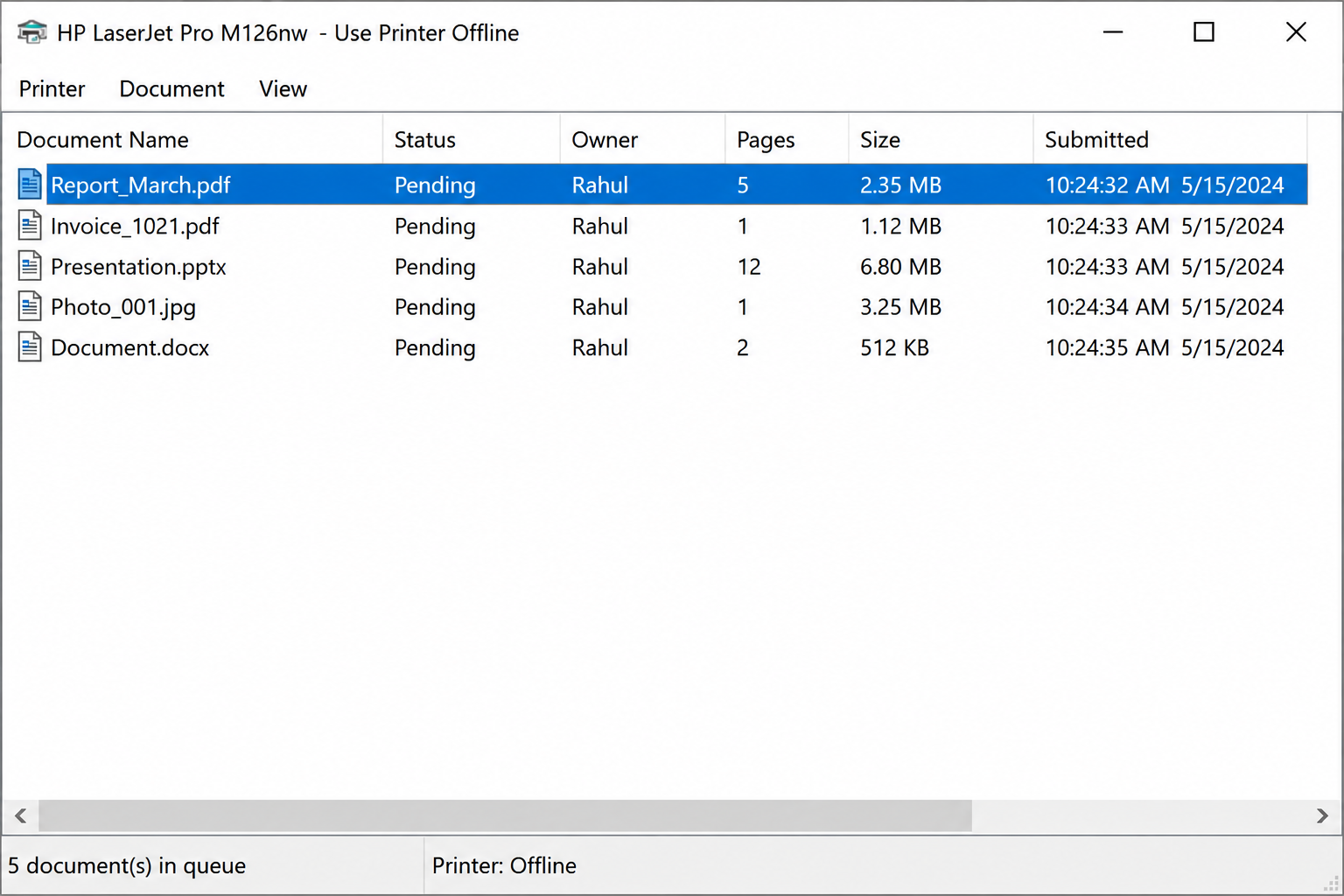
Check Print Queue
Clear old jobs if print requests are stuck.
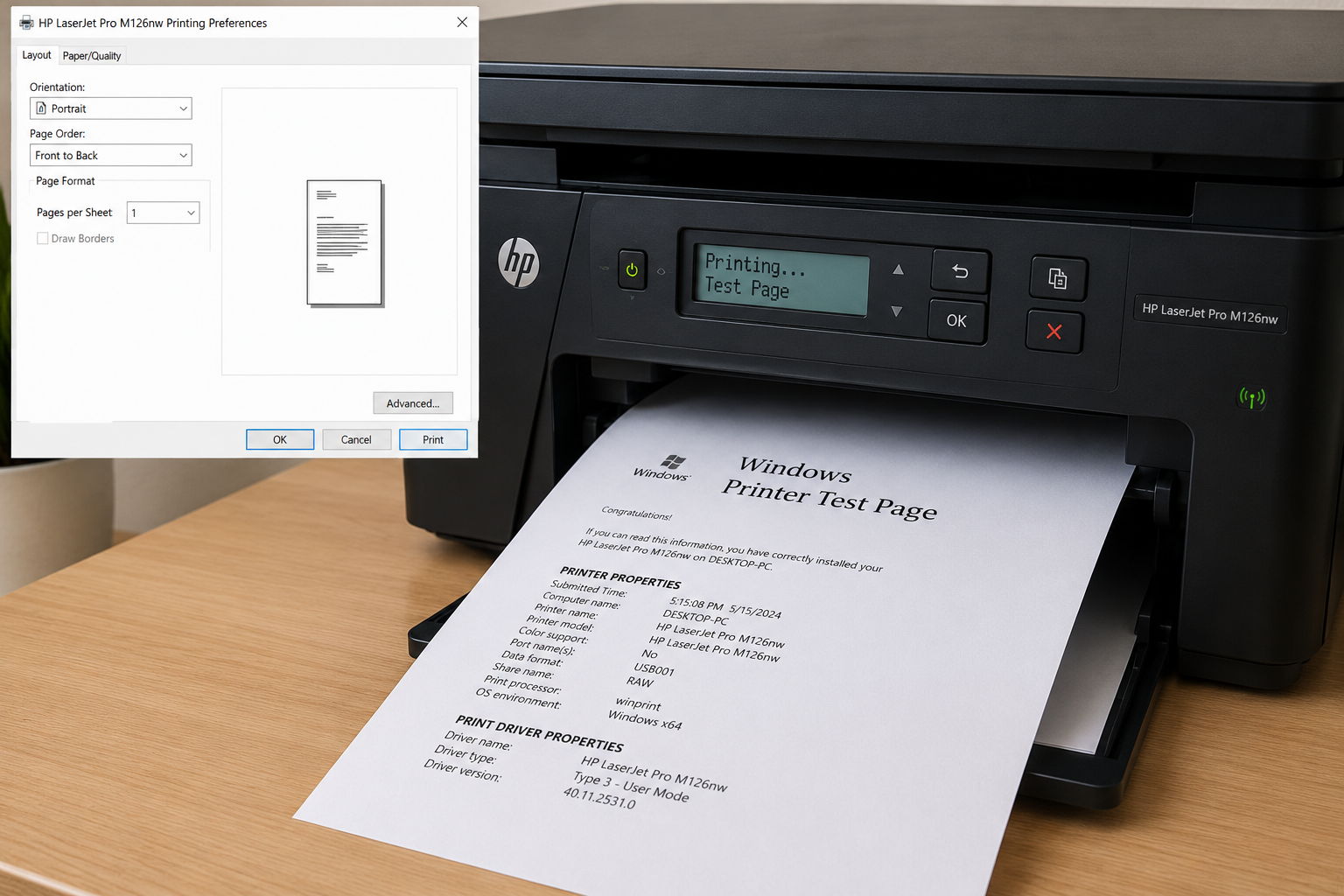
Print Test Page
Send a test page to confirm the printer path works.
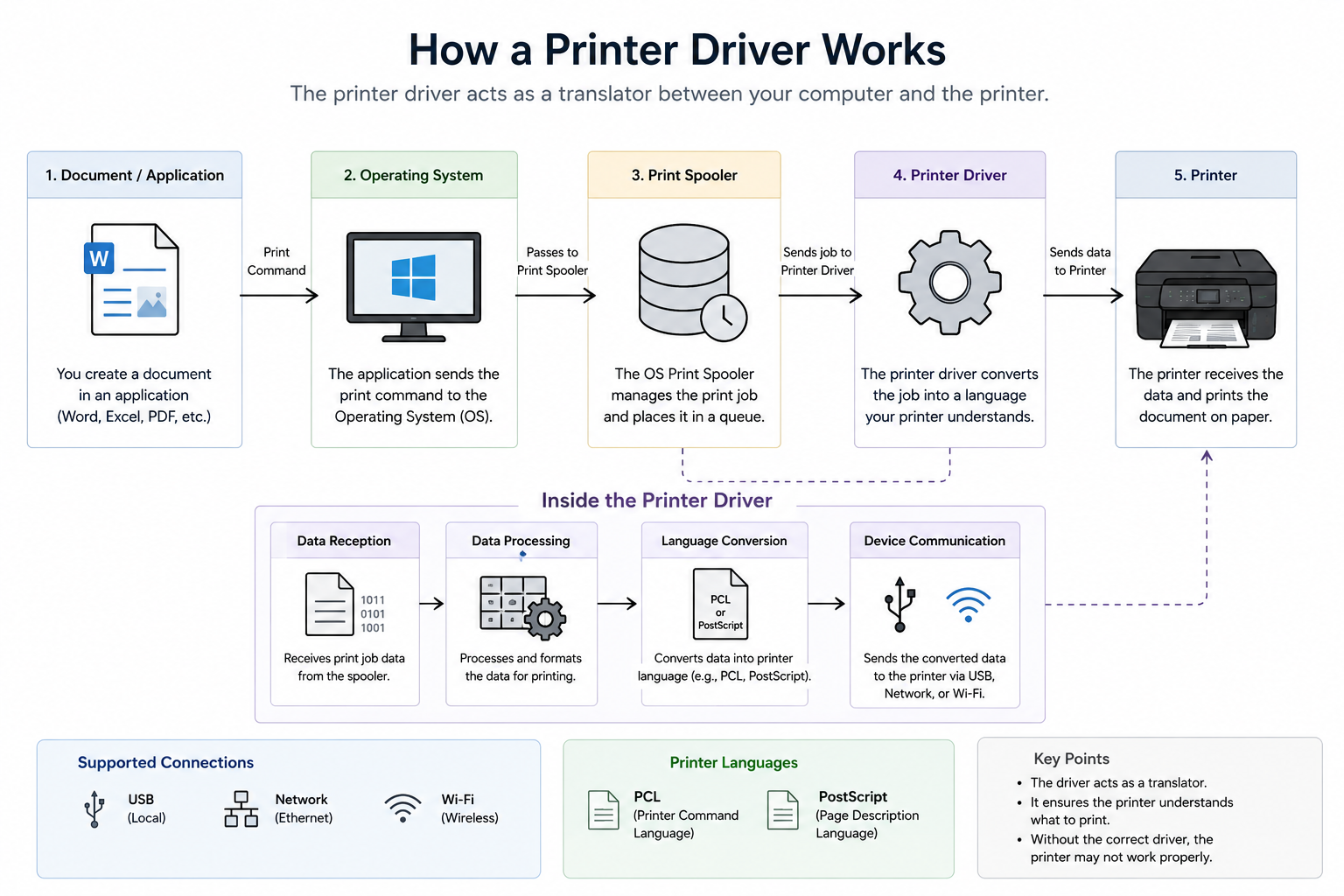
What Driver Does
Driver is the translator between computer and printer
When you click print, the document does not directly go to the printer. The driver helps convert the document into instructions the printer understands.
Quick Checklist
Check these things in this order
Is the printer turned on?
Power light, display, and printer ready state.
Is the cable or WiFi working?
Reconnect USB cable or check same WiFi network.
Is the printer visible?
Check printer list in settings or Control Panel.
Is driver installed?
Driver missing can show printer unavailable.
Is print queue clear?
Old stuck jobs can block new print requests.
Can it print a test page?
Test page confirms basic communication path.
Continue Learning
Learn more driver concepts
Explore related guides about audio, graphics, network, USB, chipset, Bluetooth, and other driver topics.